Step 1: Log in to SAP GUI

Execute the tcode >> strust

SSL Certificate

Step2: Click on SSL server standard

SSL Certificate 2

Step 3: Select the edit option here

SSL Certificate 3

Step 4: As shown in the screenshot, you need to merge three certificates in one text document
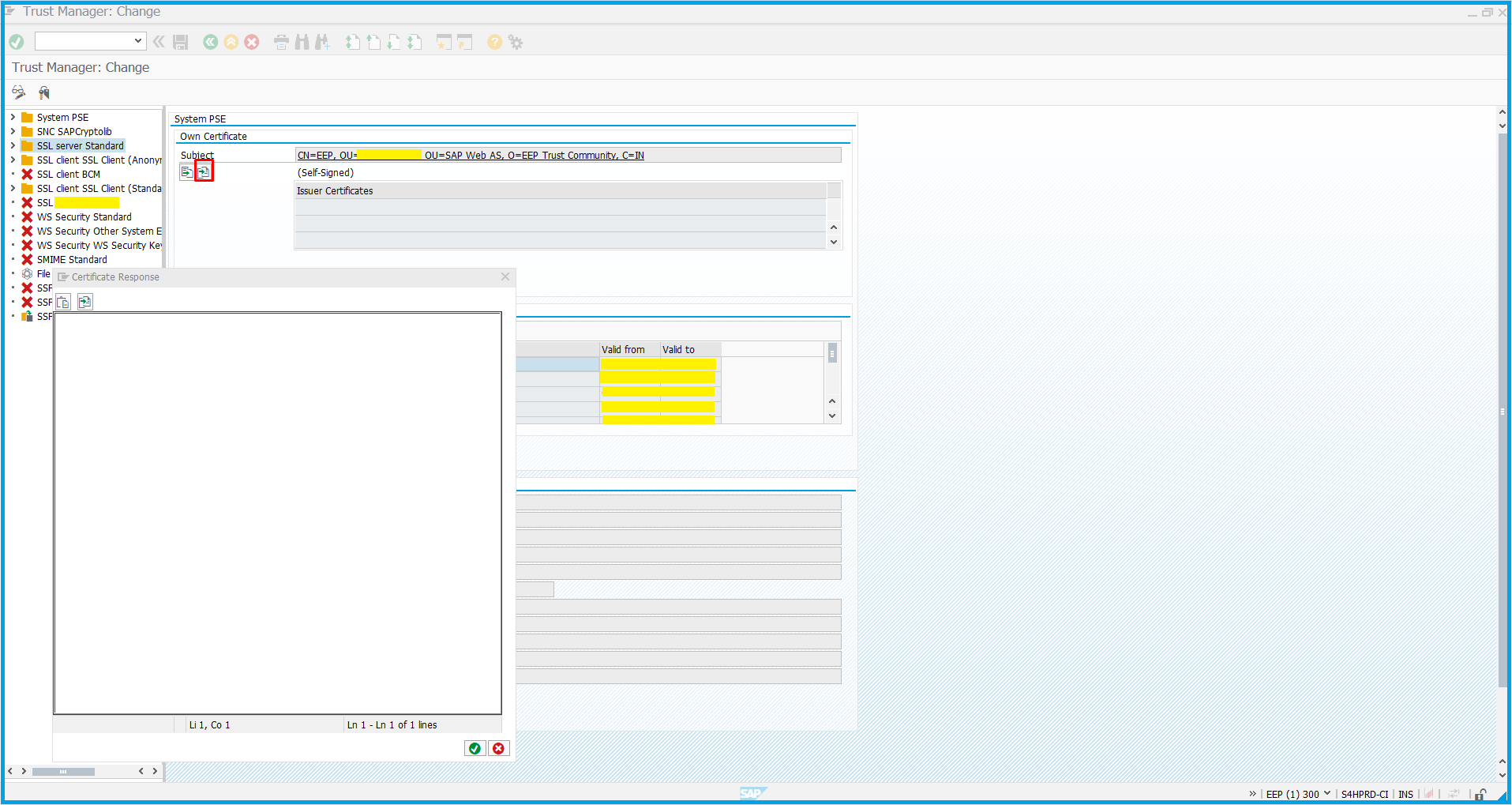
SSL Certificate 4

Step 5: Copy the content from provided SSL certificate in text format

SSL Certificate 5

Step 6: You can see all certificates merged in one single text file

SSL Certificate 6

Step 7: Import certificate as shown in the below screenshot

SSL Certificate 7

Step 8: Select the SSL_prd_certificate and click on the open tab

SSL Certificate 8

Step 9: As shown below click on Allow tab and proceed further.

SSL Certificate 9

Step 10: Now click on the green tick ✓as shown below and proceed.

SSL Certificate 10

Step 11: As you can see the SSL certificate prompt click on import as certificate and it is done.

SSL Certificate 11

mm
About Author
Niteesha Birari

Niteesha is a Senior Specialist at ESDS, working closely with the Governance Team to drive innovation, efficiency, and compliance across projects. With a strong passion for cloud technologies and digital innovation, she plays a key role in designing and maintaining the organization’s information architecture, ensuring seamless data accessibility and system efficiency. Known for her sharp analytical mindset and clear communication, Niteesha has extensive experience in crafting high-quality technical documentation—including articles, user guides, and service manuals—that simplify complex software products and services for diverse audiences.

View All Articles

Leave a Reply

Your email address will not be published. Required fields are marked *

Related Posts